 EVERYTHING


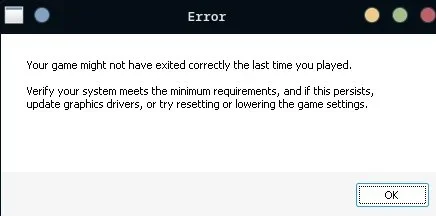
According to Appuals, the "Your game might not have exited correctly" message in Subnautica 2 can be triggered by several technical failures during startup. These issues are often related to DirectX 12 initialization problems, improper GPU selection on hybrid systems, or conflicts arising from outdated graphics configurations and drivers.
Verifying System Requirements and Windows Setup
Before attempting advanced fixes, users must confirm that their PC meets the minimum specifications listed by Steam. The current requirements include Windows 10/11, DirectX 12 support, at least 12 GB of RAM, and a minimum GPU floor of either a GTX 1660 6 GB or an RX 5500 XT 6 GB.
Furthermore, the operating system itself must be up-to-date to handle the DirectX 12 launch path correctly. Users running Windows 10 should confirm they are on Version 22H2, Build 19045 or later by checking via the Winver utility. Additionally, using the DirectX Diagnostic Tool (dxdiag) is necessary to ensure that DirectX 12 is present and that the expected GPU is correctly identified under display details.
- Compare your CPU, RAM, GPU, and free space against the current minimum specs on the Steam store page.
- Ensure Windows 10 systems are running Build 19045 or newer before proceeding with launch fixes.
- Confirm DirectX 12 support is active and visible in dxdiag.
Forcing Subnautica 2 to Use a Dedicated GPU
On laptops utilizing hybrid graphics, the system may default to integrated graphics during startup, which can trigger the failure even if a powerful dedicated NVIDIA or Radeon GPU is installed. To prevent this, users must manually instruct Windows to prioritize the high-performance card for the game executable.
The process involves targeting the actual game file, not merely the Steam shortcut. Users should navigate through Steam's library, right-click Subnautica 2, and select Manage > Browse local files. Once located, the user must follow these steps within Windows Settings:
- Go to Windows Settings > System > Display > Graphics.
- Add desktop app if Subnautica2.exe is not already listed in the graphics settings.
- Browse to Subnautica2.exe, open Options, and set the Graphics preference to High performance.
By forcing the game onto the dedicated GPU, users can bypass startup failures caused by incorrect hardware selection. After implementing these changes, it is crucial to fully close both the game and Steam before relaunching the title to test if the initial popup has been resolved.
These systematic checks—from verifying OS build integrity to manually overriding graphics preferences—provide a comprehensive approach to resolving complex startup errors in Subnautica 2. The successful execution of these steps ensures that the game initializes correctly and proceeds past its critical first launch phase.